Deleted photos, but the space did not come back: the "Recently Deleted" album
Updated 23 September 2026 · 3 min read
Your photos are not gone yet. On iPhone, a deleted photo goes to the "Recently Deleted" album in the Photos app, where it stays for 30 days and keeps counting: in the library, in iCloud, and on the iPhone. To get the space back right away: Photos → Collections → Utilities → Recently Deleted → Select → Delete All. After that, the number in Settings can take a few hours to drop, while iOS recalculates its cache. Giga shows you this path after every deletion, because without this step no clean-up is really finished.
Giga finds what weighs in your library, you decide with a swipe, and it walks you to the album to empty.
Where the album is, and how to empty it
- Open Photos.
- On iOS 18 and later, scroll down to Collections, then Utilities → Recently Deleted. On iOS 16 and 17, the album sits at the bottom of the Albums tab.
- Unlock with Face ID or Touch ID (the album has been protected since iOS 16).
- Tap Select, then Delete All at the bottom, and confirm.
Each item shows the number of days left before its automatic deletion. You can also delete only some of them, or recover some.
Why the number in Settings does not move right away
Even with the album emptied, the "Photos" line in Settings → General → iPhone Storage can stay at the same level for hours. Two reasons:
- iOS recalculates at its own pace. The storage shown is an estimate refreshed periodically, often after a night on the charger.
- With "Optimize iPhone Storage", the Photos line mostly counts thumbnails and a cache of lightweight versions, which deleting a few photos barely reduces. What you free for sure is the library and the iCloud quota. The details are in our guide "Why is my iPhone storage full when I have iCloud?".
Recovering a photo deleted by mistake
For 30 days, everything can be restored: open the album, tap the photo, then Recover. It returns to its place in the library, with its date and albums. That safety net is what makes it possible to sort fast without fear.
What Giga does after a deletion
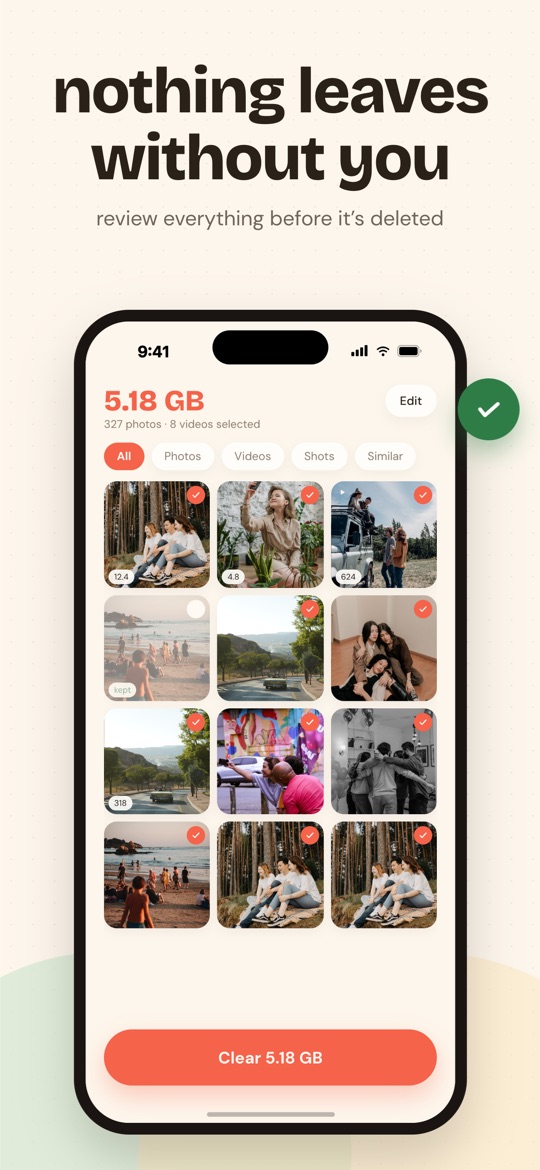
In Giga, a swipe deletes nothing: it prepares a selection. When you decide to delete, you first review the whole selection, then iOS asks for a second confirmation. What goes lands in Recently Deleted, just as from Photos.
The success screen shows what you just removed from the library, before and after, and a short guide to empty the album, with the exact path for the current iOS version. On the next launch, a reminder offers it once more. Giga cannot empty the album for you, no app can; it makes sure you do not forget.
What Giga does not do. It has no access to Recently Deleted, neither to empty it nor to restore a photo from it: both happen in Photos. And it never shows an iPhone-storage figure: its numbers are library bytes.
Frequently asked questions
Do photos in Recently Deleted still take up space?
Yes. As long as they are in the album, they count in the library, in the iCloud quota if iCloud Photos is on, and in iPhone storage for whatever is stored locally. The space only comes back on permanent deletion, automatic after 30 days or immediate if you empty the album.
Where is the Recently Deleted album on iOS 18?
Open Photos, scroll down to Collections, then Utilities → Recently Deleted. On iOS 16 and 17, it sits at the bottom of the Albums tab. The album is locked with Face ID or Touch ID.
Can I recover a photo I deleted by mistake?
Yes, for 30 days: open Recently Deleted, tap the photo, then Recover. After that, or once you have emptied the album, it can no longer be restored from the iPhone.
Does Giga empty Recently Deleted for me?
No, and no app can: only Photos has access to that album. After a deletion, Giga shows you the exact path to empty it, and reminds you on the next launch.
Free on the App Store · iOS 16.4 or later · no photo ever uploaded.