Delete all your screenshots on iPhone at once (without losing the one that matters)
Updated 23 September 2026 · 4 min read
In Photos, open Collections → Media Types → Screenshots, tap Select, then drag your finger across the grid to select dozens in one gesture, and delete. It is fast, but blind: among three hundred screenshots there is a train ticket, a backup code, an address, and the grid does not show them to you. The other way is to see them one at a time, one second each: Giga puts them in a stack, left to delete, right to keep, and always starts with them because they are the easiest decisions. Nothing goes without your review, and everything stays 30 days in Recently Deleted.
Smart Swipe opens on your screenshots, for free. One photo, one second, one decision.
Method 1: the Screenshots album in Photos
- Open Photos. On iOS 18 and later, scroll to Collections → Media Types → Screenshots; on iOS 16 and 17, it is in the Albums tab, under Media Types.
- Tap Select.
- Put your finger on a thumbnail and drag across the grid without lifting: every thumbnail you cross is selected. Keep going down to scroll.
- Tap the bin, confirm. Everything goes to Recently Deleted for 30 days.
This is the right method when you are sure you want to keep nothing. The problem is that it is almost never true. A screenshot is by nature an "I'll keep this for later": a booking, a conversation, a QR code, a Wi-Fi password. In a grid of thumbnails, they look like everything else.
Method 2: one at a time, one second each
Giga shows each screenshot large, alone, in a stack. You recognise it in a fraction of a second, you swipe: left it goes, right it stays. Three hundred screenshots take five minutes, and none went by without you seeing it.
- Smart Swipe starts with them. They are the easiest decisions in the whole library: they set the rhythm before the photos that need thought. It is free.
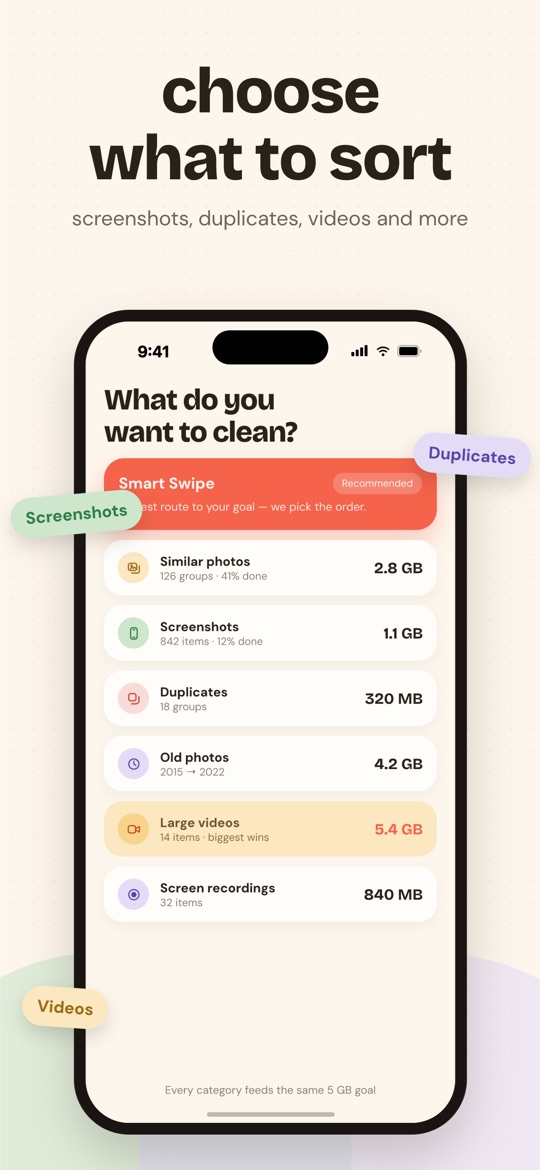
- The Screenshots category (Premium) lists them all, with their total weight, to deal with them alone.
- Screen recordings are a separate category: they are videos, often heavy, and deserve a preview before deciding.
- A swipe can be taken back. "Undo" shows your latest deletions as thumbnails; a screenshot kept by mistake sits in "Kept items". And before any real deletion, you review the whole selection, then iOS confirms.
What it frees, honestly
A screenshot weighs a few hundred kilobytes. A thousand of them therefore often add up to less than a gigabyte. Deleting them makes your library readable, which matters, but that is not where the gigabytes are: they are in videos and duplicates. Giga measures all of it during the analysis and shows you where the weight is, so you decide where to spend your five minutes.
What Giga does not do. It deletes no screenshot automatically, neither "all those older than six months" nor on any other rule: every screenshot passes in front of you. It does not read the content of screenshots to spot a code or a ticket. And it has no bulk select: on a whole month, that would be four hundred photos sent to review without any of them being seen.
Frequently asked questions
Where are screenshots in the Photos app?
On iOS 18 and later: Photos → Collections → Media Types → Screenshots. On iOS 16 and 17: Albums tab → Media Types → Screenshots. The album is automatic: everything captured with the iPhone's buttons is there.
How much space do 1,000 screenshots take?
Not much, usually: a screenshot weighs a few hundred kilobytes, so a thousand of them often add up to less than a gigabyte. Deleting them makes the library readable more than it empties it; the real gigabytes are in videos and duplicates. Giga measures both and tells you.
Does Giga delete screenshots automatically?
No. Giga shows them one by one in a stack, left to delete, right to keep; a screenshot with a ticket, a code or an address is kept with one gesture. Nothing goes without a review of the selection, then the iOS confirmation.
Is sorting screenshots free in Giga?
Smart Swipe, which is free, starts precisely with screenshots, up to 3 GB deleted per week. The dedicated Screenshots category, which lists them all with their weight, is part of Premium.
Free on the App Store · iOS 16.4 or later · no photo ever uploaded.